The short version
- Regular apps haven’t been allowed to switch the hotspot on directly for years. Many got around that with non-public system calls. Android 16 blocks those calls, so “car connects → hotspot on” routines quietly stopped working.
- What still works: a phone-maker routine that has a hotspot action, Shizuku, root, or tapping the Quick Settings tile the way you would, through an Accessibility Service. AutoHotspot does the last one.
- No workaround is guaranteed on every phone. Start with the free trial and run the built-in test before you pay anything.
What changed in Android 16
Turning on the Wi-Fi hotspot counts as a privileged action. Android 8.0 took the old
setWifiApEnabled call away from regular apps. Its official replacement,
TetheringManager.startTethering, requires the TETHER_PRIVILEGED permission, which only
apps signed by the phone maker can hold.
Automation apps worked around this for years by calling hidden, non-public versions of the same function,
and on many phones that kept working through Android 15. Starting with Android 16, that route is
closed: the request is refused with a permission error
(TETHER_ERROR_NO_CHANGE_TETHERING_PERMISSION). A routine that ran every day for years can just stop
after the system update, often without showing any error.
An app update can’t fix this, because the restriction is built into the system itself. Any app that switches the hotspot through the system API now needs privileges that normal apps can’t get.
Your options on Android 16 and 17
How AutoHotspot works
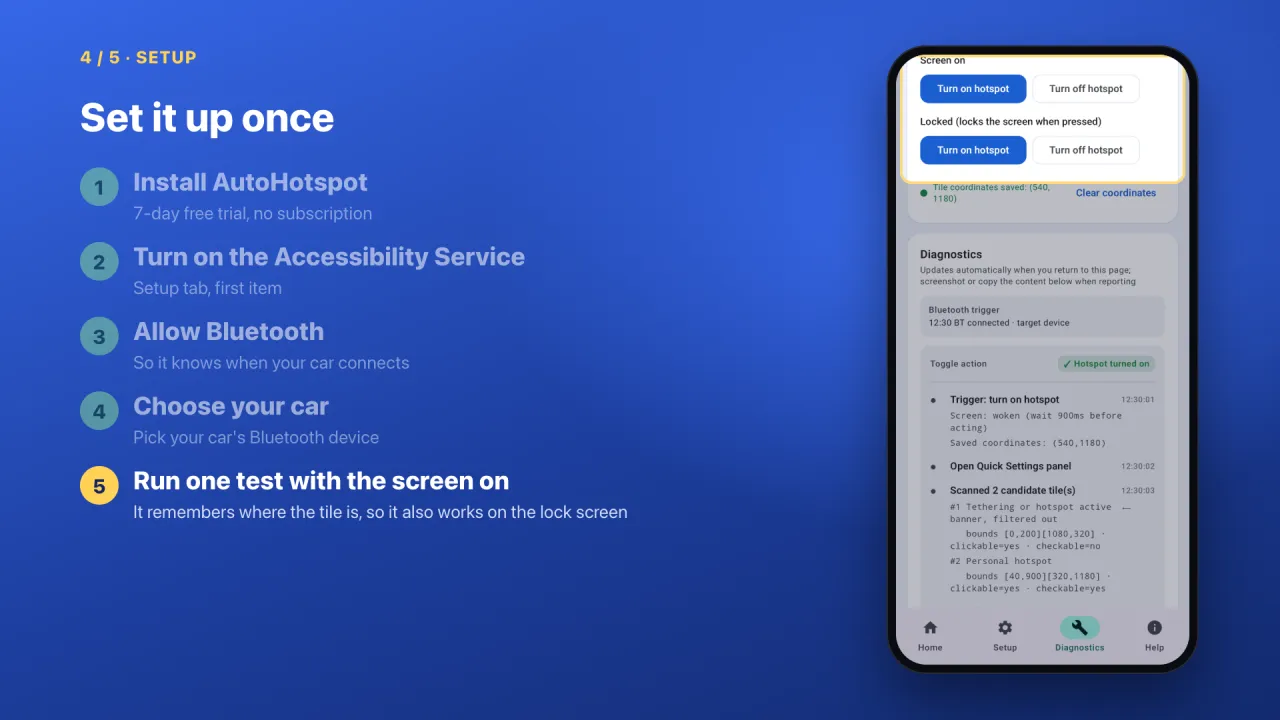
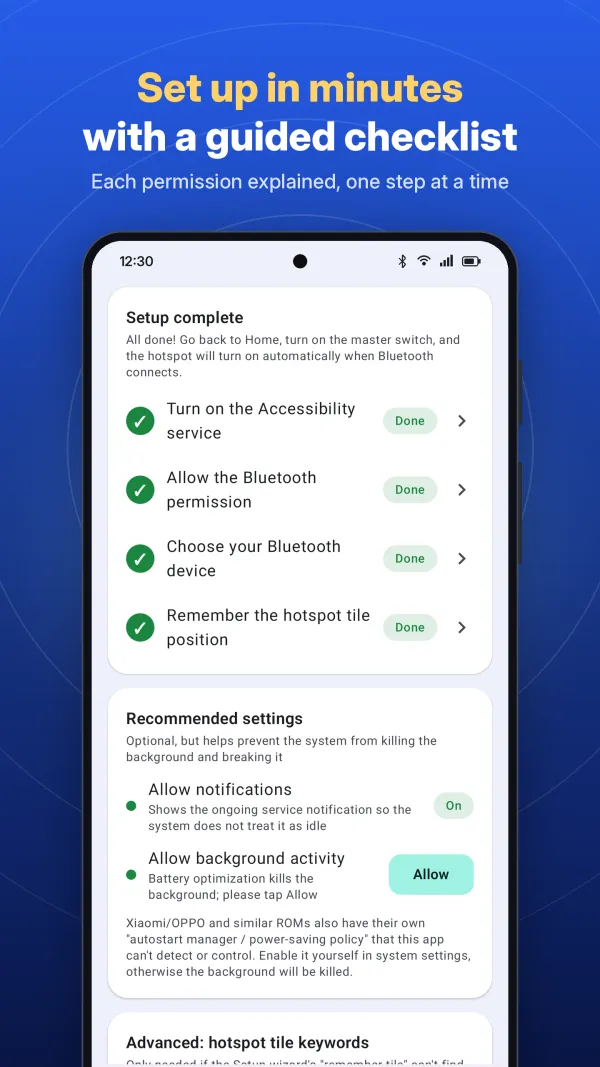
- Set it up once. A checklist walks you through it: turn on the Accessibility Service, allow Bluetooth, pick your car, then run one test with the screen on so the app learns where your hotspot tile is.
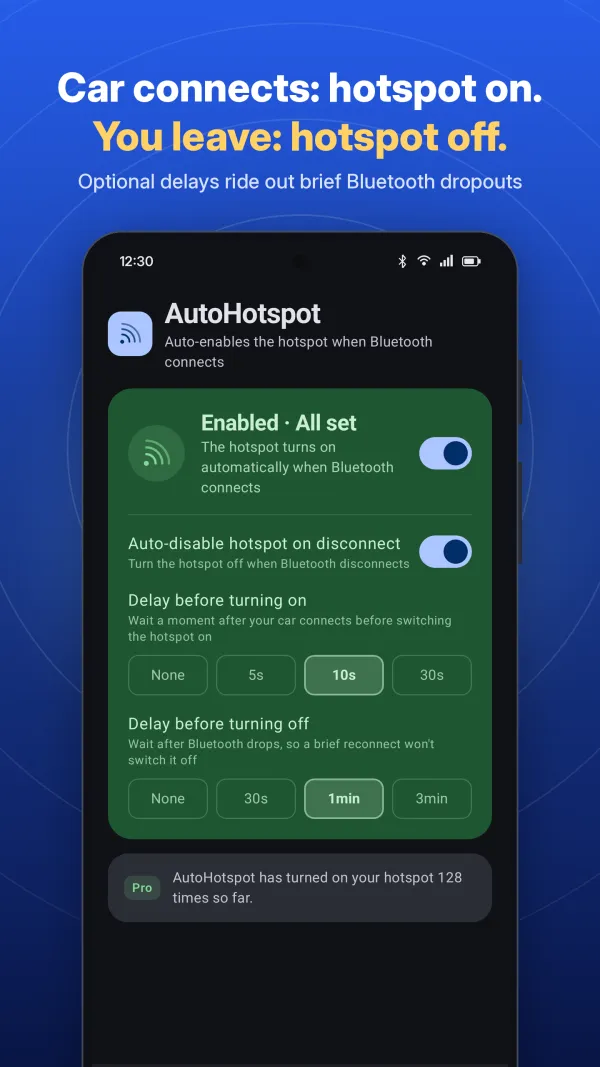
- Get in the car. When the phone connects to your car’s Bluetooth, the hotspot turns on, even if the phone stays locked in your pocket. Your head unit, tablet or dash cam gets online right away.
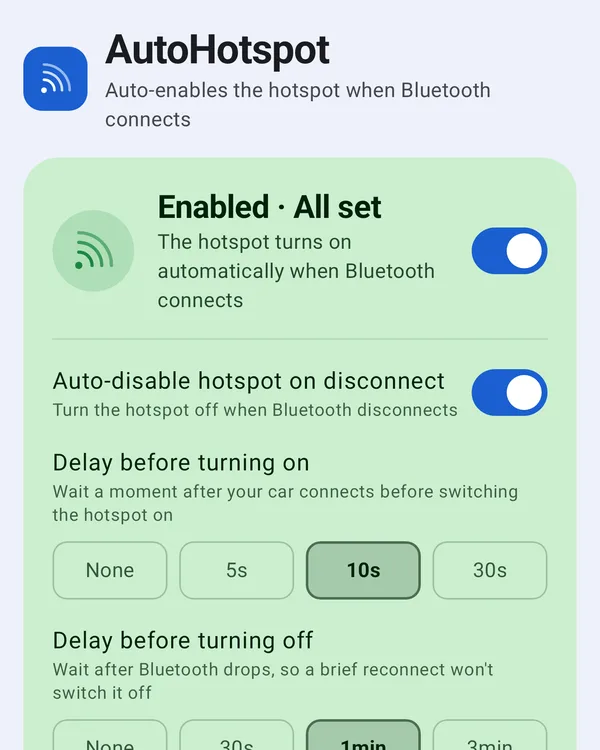
- Leave. When Bluetooth disconnects, the hotspot can turn itself off. An optional delay stops a brief Bluetooth dropout from switching it off.
What’s included
- Choose one or more Bluetooth devices that trigger it: car stereo, head unit or any other paired device
- Optional auto-off when Bluetooth disconnects
- Optional delays before turning on and before turning off
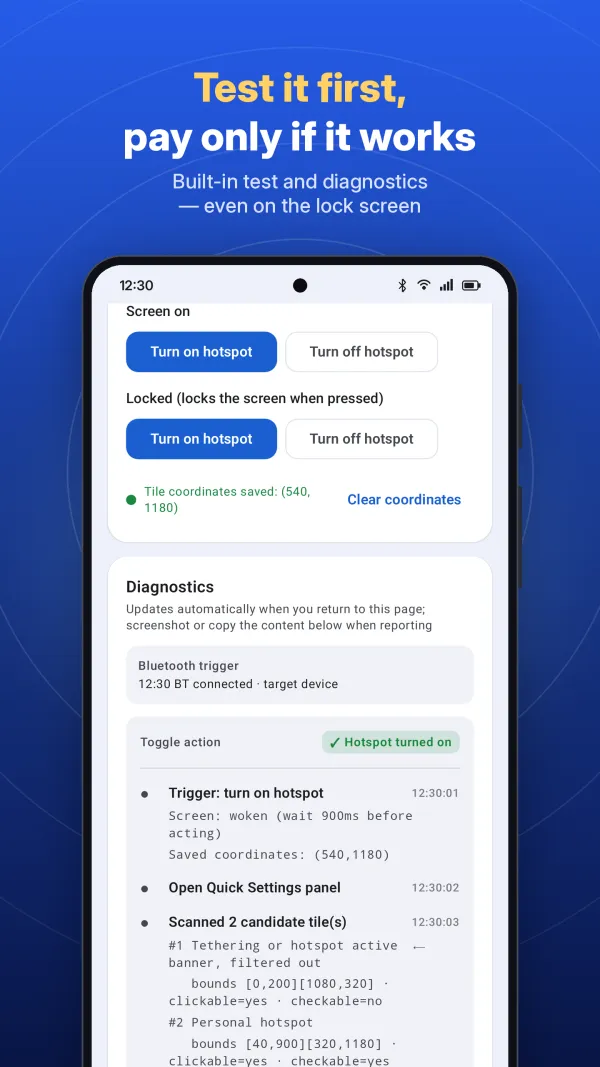
- Works on the lock screen; the app remembers the tile’s position so it keeps working trip after trip
- Built-in tile keywords for many languages, and you can add your own
- A built-in test (screen on and locked) plus step-by-step diagnostics you can copy
- Starts again by itself after the phone reboots
Before you install: honest limitations
- Network settings locked while the phone is locked. Some phones require unlocking before Wi-Fi, Bluetooth or hotspot can change on the lock screen. On Samsung this is Settings → Lock screen → Secure lock settings → Lock network and security. Turn it off, or the automation will only work while the phone is unlocked.
- Aggressive battery savers. Some phones close background apps on their own. Allow AutoHotspot to autostart and run in the background. The app shows you where to do this.
- Advanced Protection. With Android’s Advanced Protection mode on, the system turns off Accessibility access for apps that aren’t accessibility tools, so AutoHotspot can’t run.
- The hotspot tile must be in Quick Settings. If you removed it, add it back.
That’s why the app comes with a free trial and a built-in test. Check it works on your phone, unlocked and locked, before you buy.
FAQ
Does AutoHotspot need root or Shizuku?
No. It doesn’t use the locked-down tethering API at all. It taps the hotspot tile in Quick Settings through an Accessibility Service. No root, no Shizuku, no ADB and no computer.
Can Tasker or MacroDroid still turn on the hotspot on Android 16?
Their built-in hotspot actions need Shizuku (or root) on Android 16 and above. Tasker’s release notes say its WiFi Tether action requires Shizuku, and MacroDroid’s hotspot action relies on it too. On a non-rooted phone, Shizuku stops at every reboot and has to be restarted over wireless debugging, which needs a Wi-Fi network. The other route is a macro that taps the screen for you. AutoHotspot is that approach ready-made: it finds the hotspot tile in Quick Settings and taps it.
Does it work on Android 17?
Yes. It doesn’t depend on the API that Android 16 restricted, and it has been reported working on Android 17. Phones differ, so run the built-in test during the free trial.
Does it work when the phone is locked?
Yes. Run one successful test with the screen on; AutoHotspot remembers where the hotspot tile is and can tap it later on the lock screen. If your phone requires unlocking before network settings can change, see the limitations above.
Honor phone: works when unlocked, but not on the lock screen?
Two Honor system features can block it. If pulling down Control Center on the lock screen asks for your PIN instead of opening it, turn on the option that lets Control Center open on the lock screen (on some versions under Settings → Notifications & status bar). And when the phone is face down or in a pocket, Accidental touch prevention blocks every touch, including the app’s: keep the phone face up, or turn that feature off in Settings.
Does the Accessibility Service read my screen?
It reads on-screen text only to find the hotspot tile in Quick Settings, then taps it. It doesn’t collect, store or upload screen content, and the diagnostic log stays on your phone. The app sends anonymous crash reports and basic usage statistics, and shows ads unless you buy Pro. Details are in the privacy policy.
Will it turn the hotspot off when I leave?
If you want it to. Turn on “Auto-disable hotspot on disconnect”, and add a delay if your car sometimes drops Bluetooth for a moment.
Can I use it with a head unit, tablet or dash cam?
Yes. Choose your car’s Bluetooth as the trigger, and anything that joins your phone’s hotspot gets online. That includes head units and aftermarket stereos that need internet, tablets, laptops and dash cams.
How much does it cost?
There’s a 7-day free trial. After that you can watch a short ad for more free days whenever you like, or make a one-time purchase to unlock it for good. There’s no subscription.
Get your car hotspot back
Free for 7 days. Run the built-in test on your phone first.